📦 Stock Manager (Stop-lists)
The Stock Manager is used to control dish availability in real time. The focus is on moving comfortably through folders and managing the visibility of items that arrive from our RMS (iiko).
When you first open the section you see the Stop-list (the "Out of stock" list). This is what actually arrived from iiko as unavailable.
Path: Sidebar → Catalog → Stock Manager
🚫 Stop-list (Out of stock)
This shows every item that is currently stopped. It is the initial list, kept up to date directly from the RMS (iiko).

🔍 Stock overview
From here you can switch to the Overview tab, where you can move through the menu's folders and categories.

Group control (the eye — Hide/Show)
Each group has an eye icon (Hide/Show) you can turn on or off. This is a quick way to change whether the group is shown on the site (a marketing-level hide).
Important: if a dish is a promo item, it keeps working even when the eye is off. The eye is there precisely so a promo dish can be hidden from the catalog while staying available.
Control inside a group (dish actions)
Once inside a group you manage the cards of individual dishes. Here you get the levers that control an item's state.

You can control three visibility parameters for a dish: 1. Disable / Enable: A hard switch-off of the dish. When disabled, it simply disappears from the cart and catalog. 2. Hide / Show (the eye): Marketing-level visibility — hides the item while keeping it functional (useful for promos). 3. Set Balance: How many portions are left. You can set it yourself, but it will also be updated (overwritten) when a new value arrives from iiko.
Filtering and display
Several filters control which items are shown. For example, Show all displays every dish (both hidden and visible ones that appear here at all). As soon as you disable an item, it is filtered and the sorting adjusts accordingly.
Sorting ("Sort by")
The system offers several sorting modes:
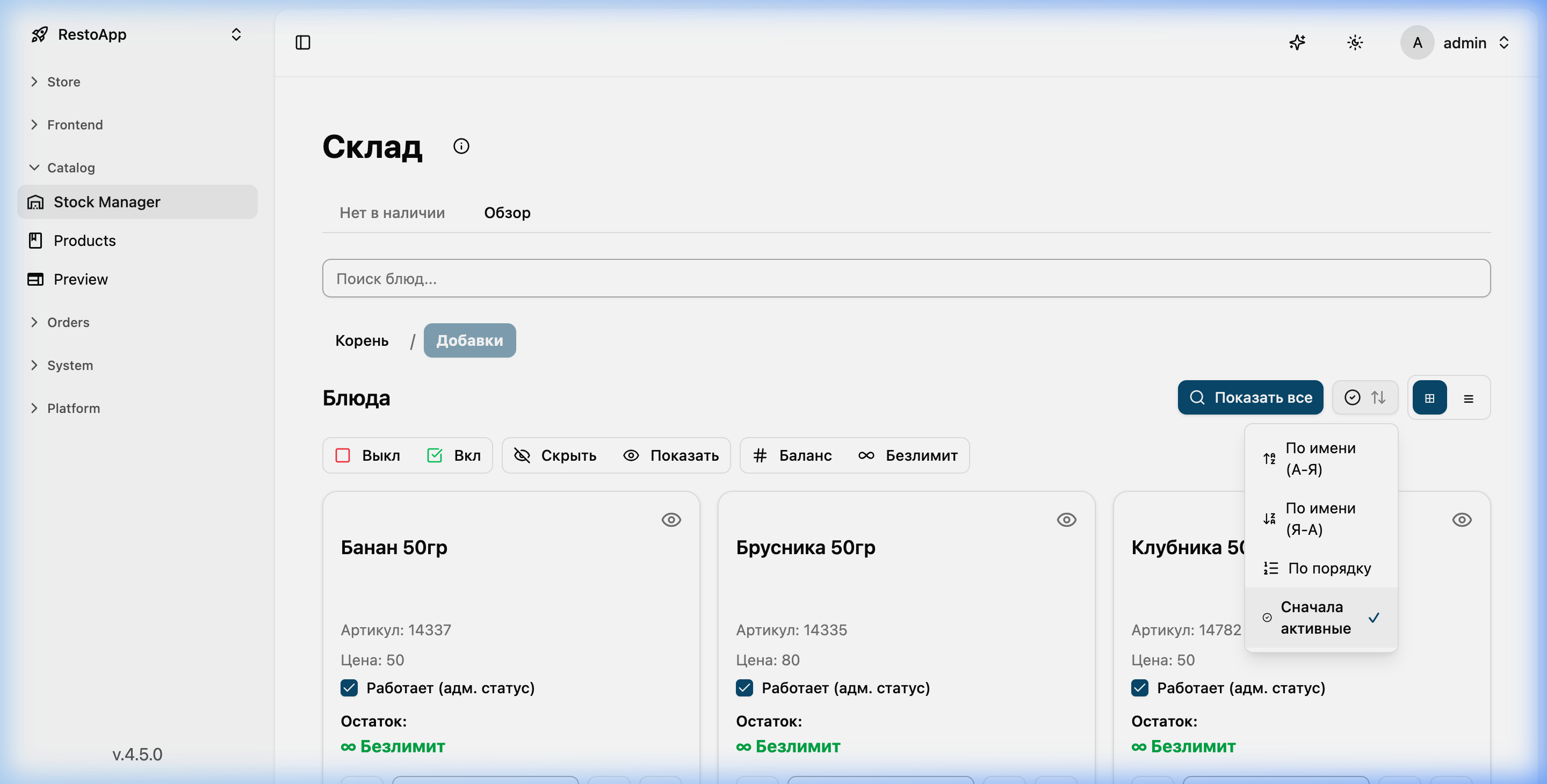 Figure 4: Sorting modes in the Stock Manager.
- Active first: The default mode. Available (active) items come first.
- Order: Sorted the way it is arranged in iiko.
- Name: Alphabetical order.
List mode
Besides cards, the Overview also lets you switch to list mode for convenient bulk review.
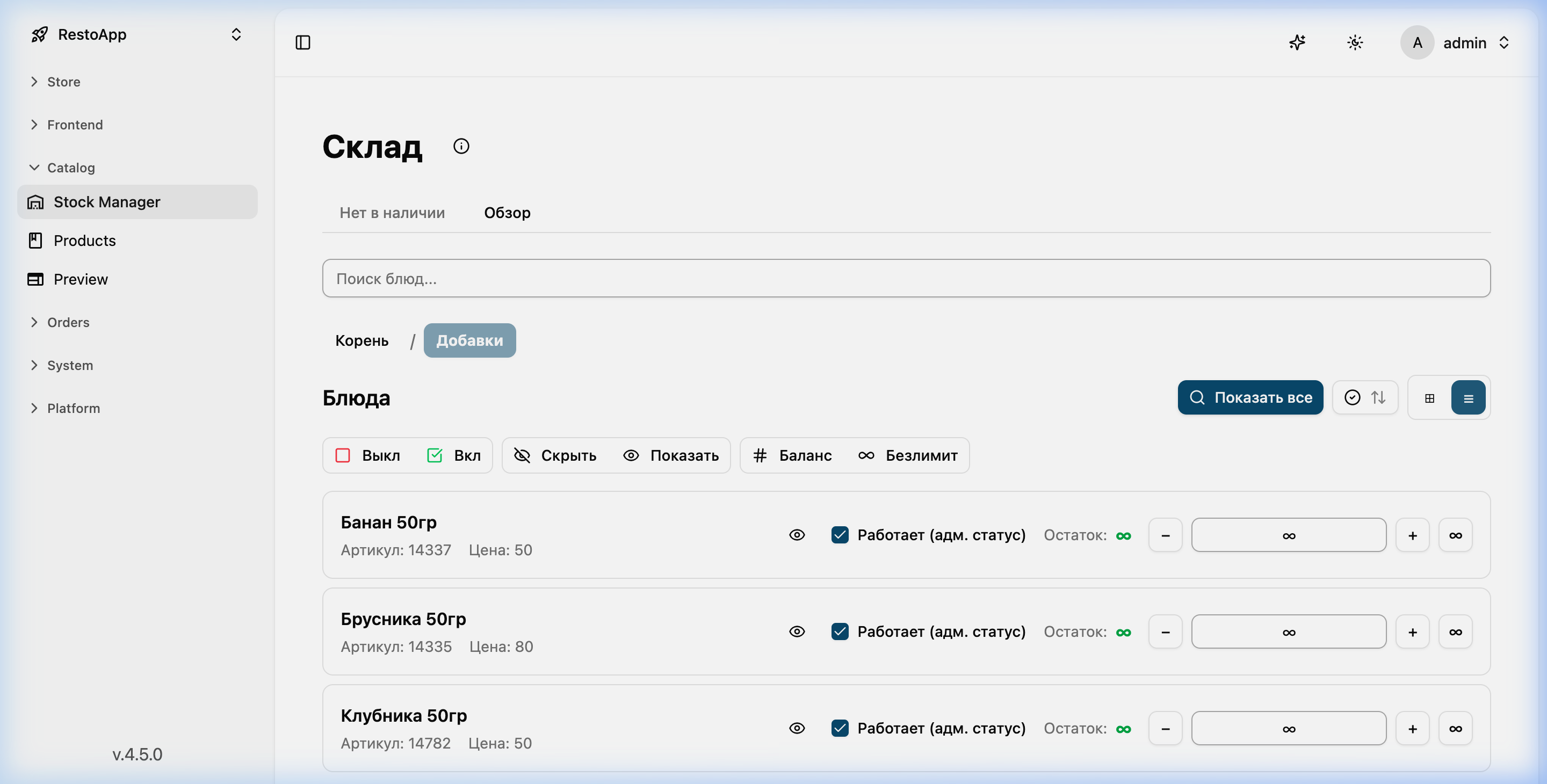 Figure 5: The list-mode display.
[!TIP] Be careful when working with visibility. Use Disable to fully switch an item off, and the eye to remove an item from the storefront while keeping it working for promotions.