🎟️ Marketing
The Marketing section replaces the old raw tables for discounts with two guided managers — Promo codes and Promotions — so you can configure offers with forms instead of editing JSON.
Path: Sidebar → Marketing
A promo code does nothing on its own. It activates the promotions linked to it when a customer enters the code at checkout. Create the promotion first, then create a code that points to it.
🏷️ Promo codes
Path: Sidebar → Marketing → Promo codes
The page has three tabs: Dashboard, Promo codes, and Activity.
Dashboard

Pick a range (7 / 30 / 90 days) and Refresh to reload. The cards summarise the period:
| Card | Meaning |
|---|---|
| Active codes | Codes currently usable, out of the total |
| Applications | Orders that used a promo code in the period |
| Total discount | Sum of discounts granted |
| Average discount | Discount per application |
Below the cards: an Applications over time bar chart (hover a day for exact figures), a Top promo codes ranking, and an Application status breakdown (applied vs invalid).
Promo codes list
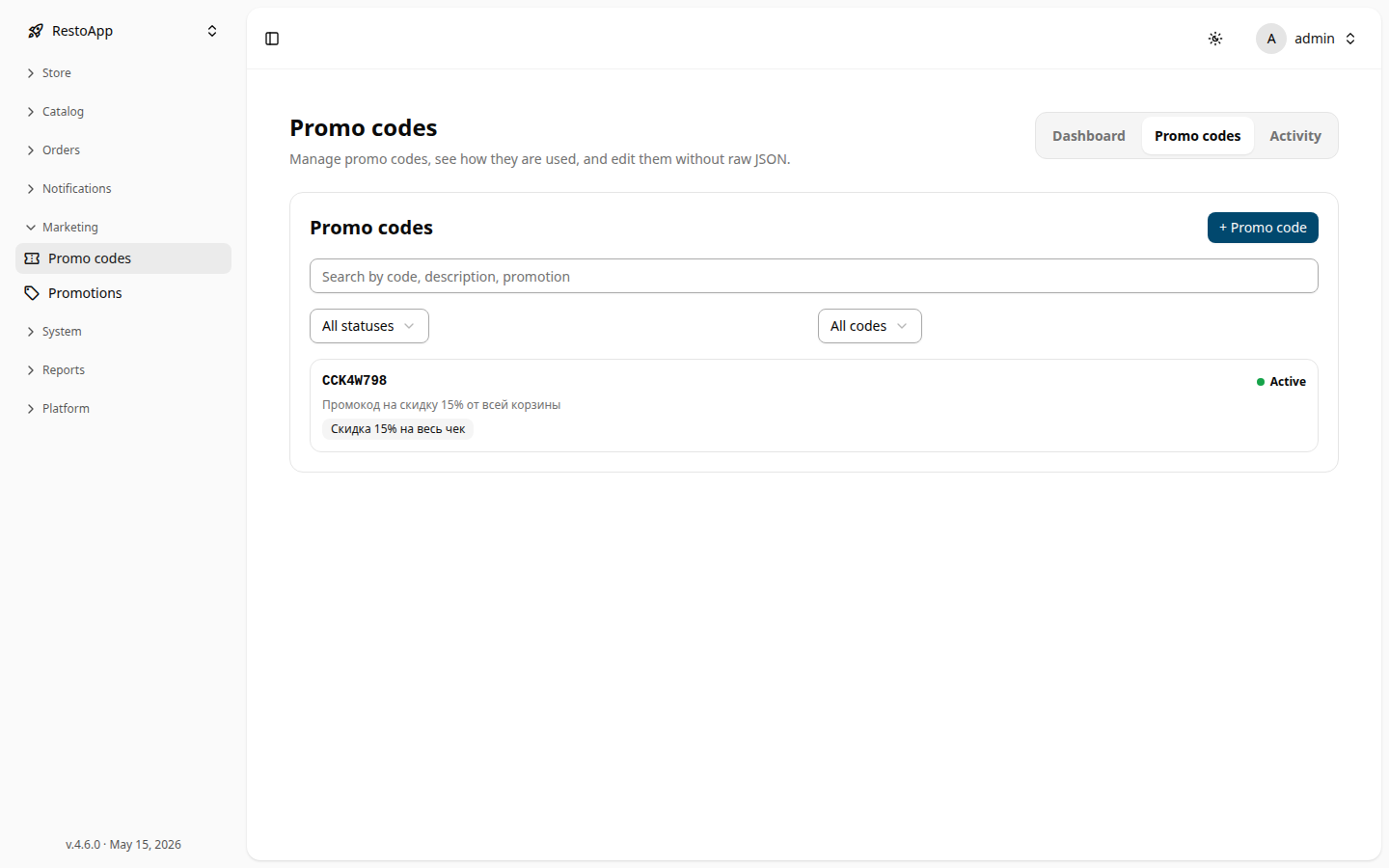 The promo codes list with search, status and binding filters.
- Search by code, description, or linked promotion.
- Status filter: All / Active / Scheduled / Expired.
- Binding filter: All / With promotions / Without promotions.
- + Promo code creates a new code.
Creating / editing a code
| Field | Description |
|---|---|
| Code | What the customer types at checkout (letters and digits). Press Generate for a random code; availability is checked as you type — a code already in use is rejected. |
| Description (required) | Shown to the operator and stored on the order. |
| Type | Static (one fixed code). Generated / Serial / External are coming soon. |
| Linked promotions | The promotions this code activates. A summary of what each grants is shown below the picker. |
| Validity period | Start / End date — leave empty for no limit. |
| Advanced | External ID, Prefix, a fine-grained Schedule (work-time), and a Custom data (JSON) field. |
Use Save to store, Duplicate to clone an existing code into a new draft, and Delete to remove it (already-issued codes stop working).
Activity
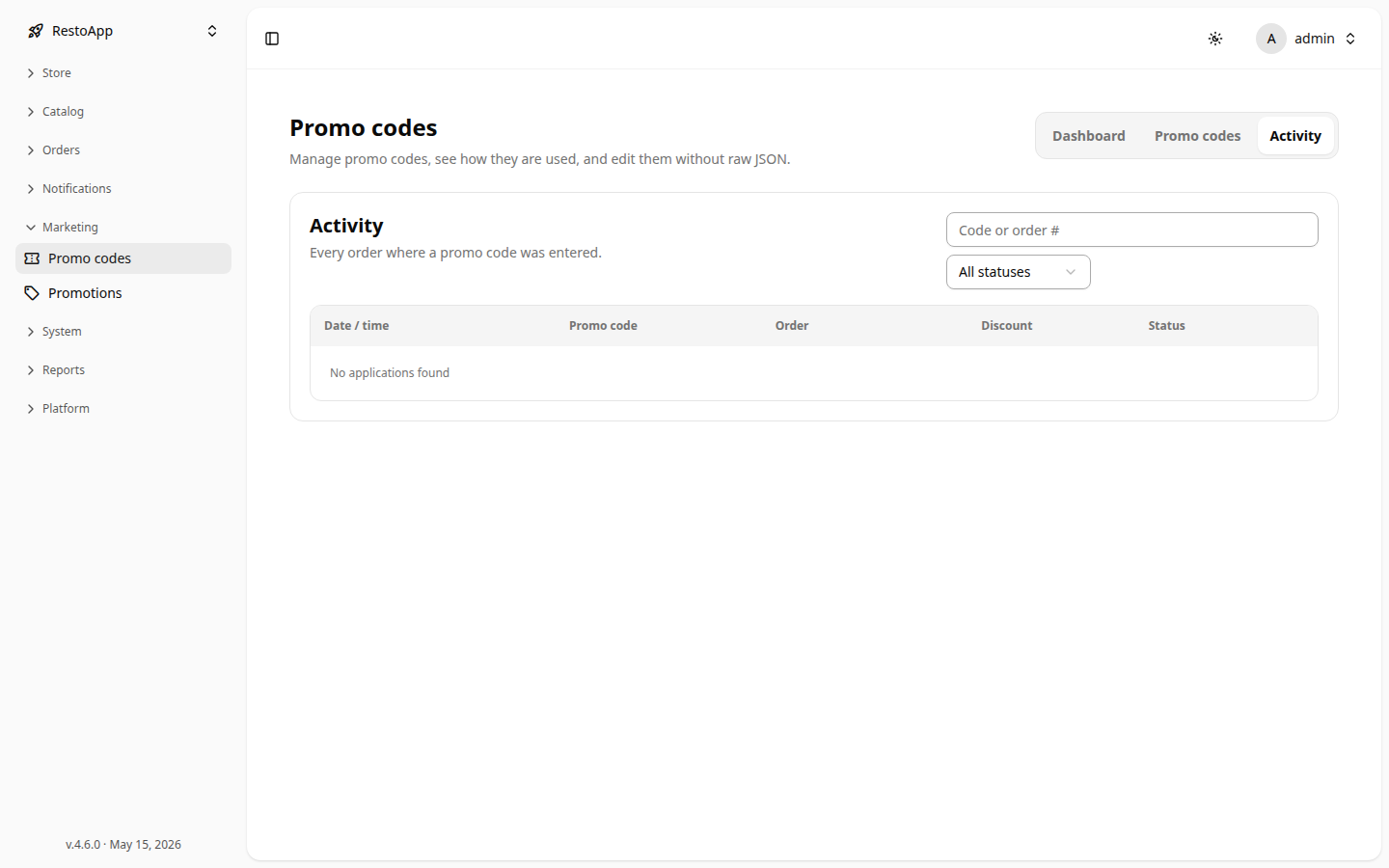 The Activity log of orders where a promo code was entered.
Every order where a promo code was entered, with date/time, code, order, discount, and status (Applied / Invalid). Click a row to expand the promotion state and open the order. Search by code or order number and filter by status.
🔖 Promotions
Path: Sidebar → Marketing → Promotions
There are two kinds of promotion:
- Programmed — defined in code/a module. View-only: you can change only Enable and Priority, not the discount itself.
- Configured — created here and edited with a full form.
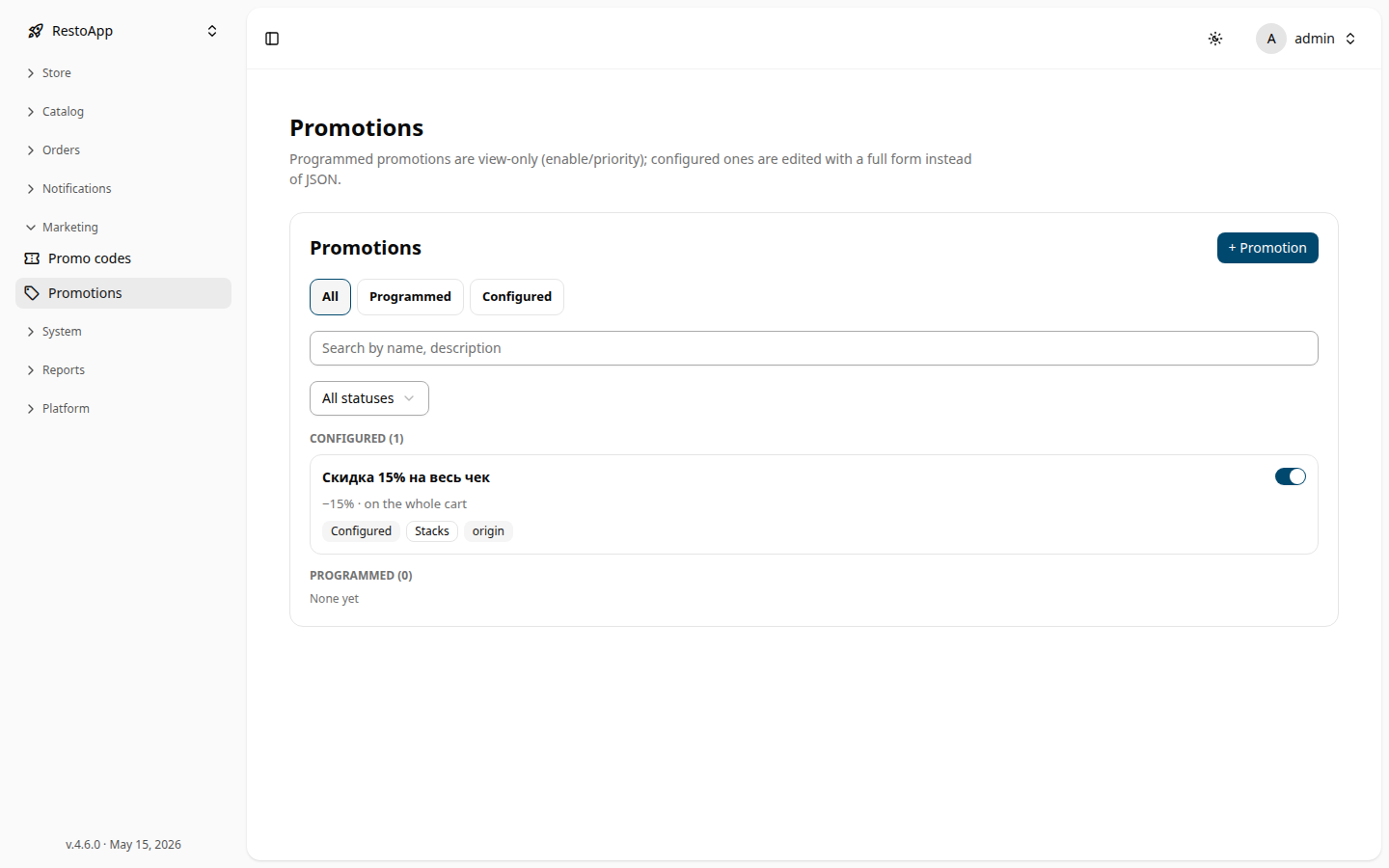 Promotions grouped into Configured and Programmed, with kind and status filters.
Filter by kind (All / Programmed / Configured), search by name or description, and filter by status (Enabled / Disabled). Each card shows the discount summary and badges (Configured/Programmed, Stacks/Exclusive, Storefront, 🎁 Gift).
Configured promotion form

| Block | Fields |
|---|---|
| Basic | Name (required), Description (required), Concepts (storefronts/menus; empty = origin), Enabled toggle, Priority (sort order) — lower applies earlier. |
| Discount | Percentage or Fixed amount, plus the Amount. |
| Applies to | Whole cart or Selected items (pick Groups and Dishes). Delivery method (Delivery / Self-service; leave both off for any). Do not apply to modifiers. Exclusions — excluded groups and dishes. |
| Behaviour | Compatibility — Stacks with others or Exclusive (exclusive applies alone, first). Show in storefront / API — lets the client display the discount. |
| Gift & conditions | Minimum basket for promo code (₽, only checked when applied via a code). Add gift items toggle → Gift threshold and Gift items with a quantity each. Gifts are auto-added once the basket reaches the threshold and removed if it drops below. |
| Schedule | Work-time editor; leave empty for always-on. |
| Summary | A plain-language preview of the configured offer. |
| Advanced | External ID and Badge (read-only). |
A Form / JSON toggle (for existing records) shows the raw stored object for reference. Save stores changes; Delete soft-deletes the promotion and turns it off.
Programmed promotion detail
A read-only overview (description, discount, concepts, compatibility, storefront, external ID). You may toggle Enable and adjust Priority only.
📱 Mobile
Both managers are responsive. On a phone the list and the editor are shown one at a time: open an item to edit it, then use ← Back to return to the list. Tables (the Activity log) become stacked cards.