🥗 Catalog & Dish Management
This section describes how to manage dishes, categories, and their hierarchical structure.
📁 Navigating the category tree
The main interface for browsing the product catalog is the Tree View. It lets you manage how dishes are organised across folders/categories.
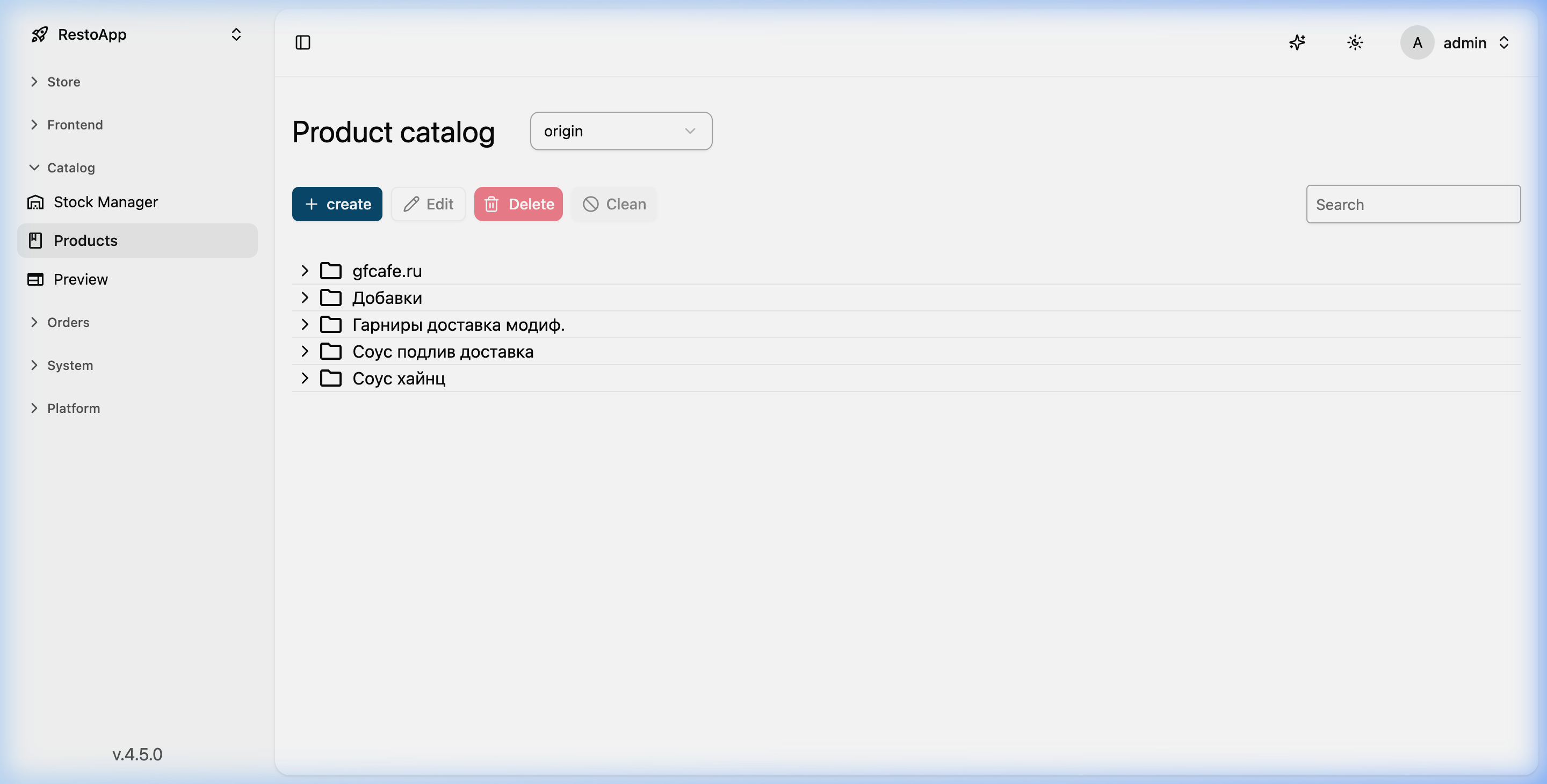 Figure 1: Hierarchical structure of the catalog.
How to access it:
1. Go to Catalog → Products in the sidebar.
2. Pick the terminal you need (e.g. origin) from the Select Ids dropdown.
3. A hierarchical tree appears, showing root folders such as restoapp.org, Add-ons, Sides, etc.
🖱️ Context menu (right-click actions)
To manage a specific folder or dish directly from the tree, use the right mouse button.
- Open/View: Right-click a folder or dish and choose View to inspect its contents or details.
- Edit: Choose Edit to change attributes such as SKU, name, prices, and descriptions.
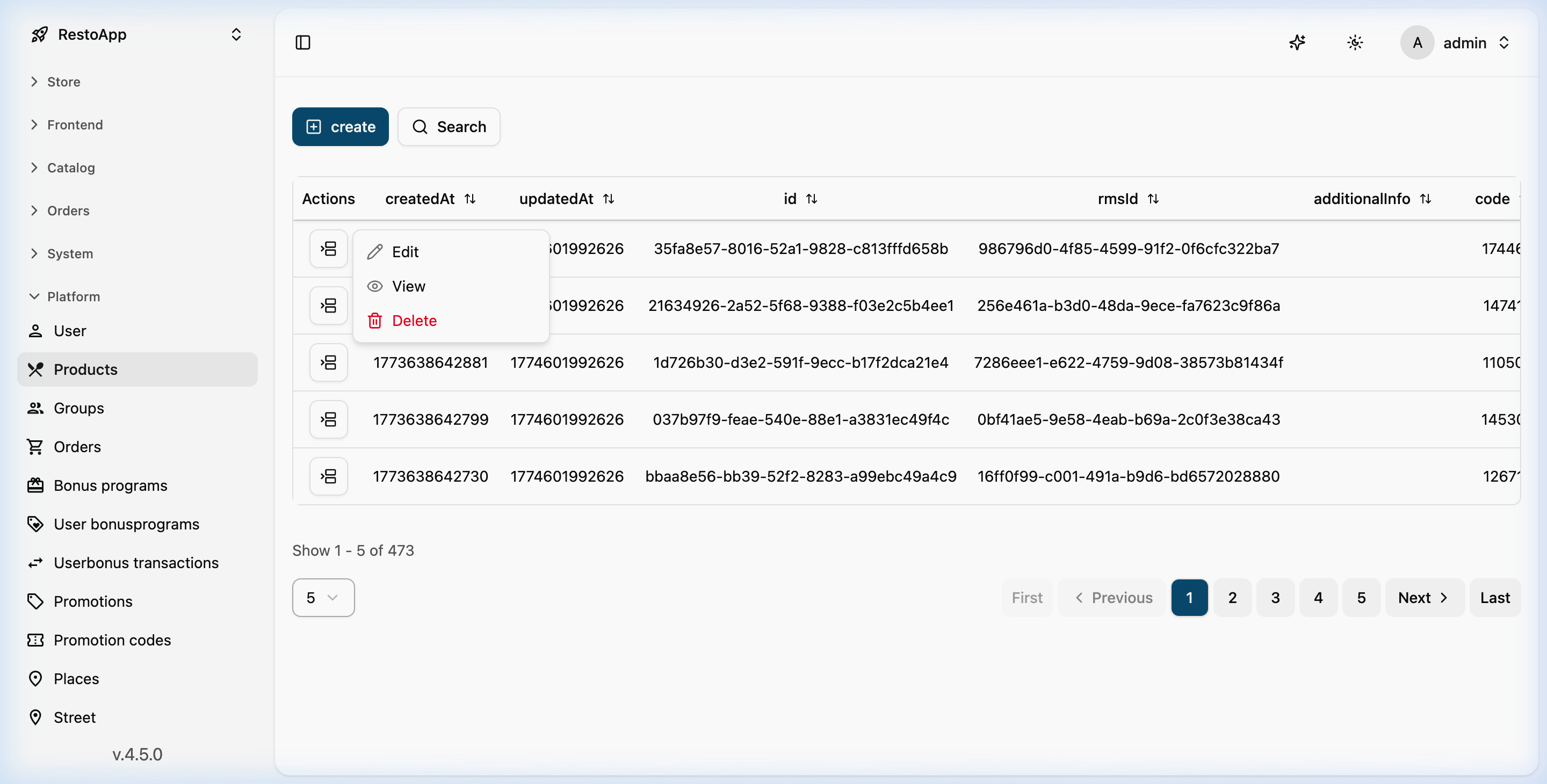 Figure 2: Context menu for product actions (Edit, View, Delete).
📝 Editing dishes and catalogs
Detailed product information can also be found under Platform → Products.
Key attributes when editing: * SKU: The technical unique identifier (article number). * SEO metadata: Title, keywords, and meta description for the website. * Nutrition: Proteins, fats, carbohydrates, and calories. * Pricing: Base and promotional prices.
For structural changes (such as adding new folders or moving products), the category tree is the preferred tool.